
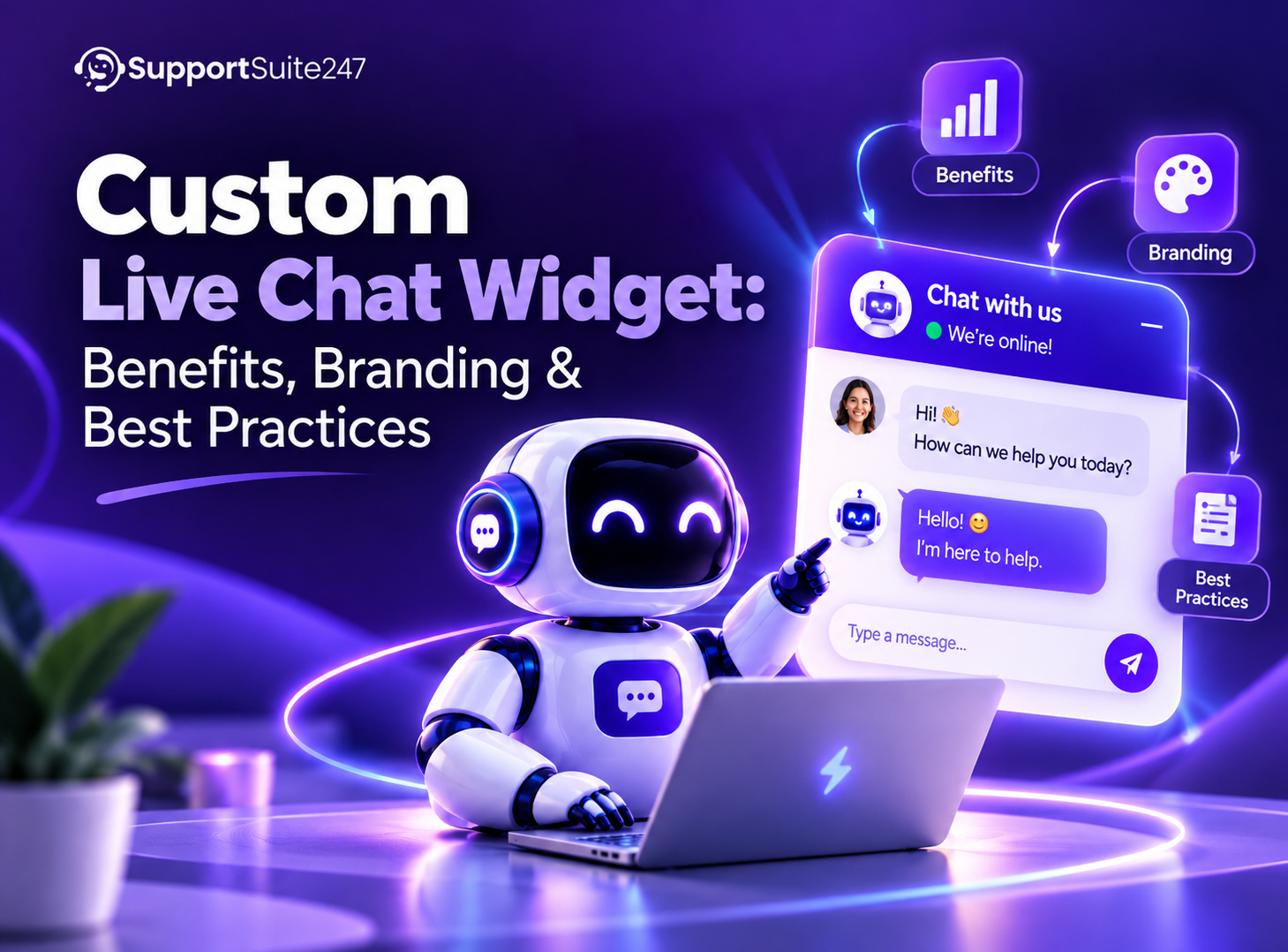
A custom live chat widget is a small, interactive interface embedded directly into a webpage. It allows website visitors to send text messages and receive real-time answers from support agents or automated systems. Rather than forcing users to find a contact page, draft an email, or make a phone call, this tool keeps them on the current page while they get help.
Before exploring the specific elements of interface design and branding, you need to understand exactly what is live chat at a structural level. The system consists of two parts. The first is the backend dashboard where your agents log in to read and reply to messages. The second is the frontend interface that loads on your website. Customization applies exclusively to this frontend interface. It involves modifying the visual appearance, the structural behavior, and the text prompts to match your specific business requirements.
How a Chat Widget Works
Installing a chat widget usually requires copying a small piece of JavaScript code and pasting it into the HTML of your website. This script tells the visitor’s web browser to fetch the chat interface from the software provider’s servers.
To prevent the widget from slowing down your website, modern scripts load asynchronously. This means the browser continues loading your main website text and images while the chat tool loads in the background. Once loaded, the widget establishes a persistent connection using WebSockets. This protocol keeps a two-way communication channel open. When a visitor types a message and hits send, the WebSocket transmits the data instantly to the agent’s dashboard without requiring the webpage to refresh.
The default version of this script usually generates a generic design. It might feature a standard blue button, a basic square window, and standard filler text. A customizable live chat widget allows you to alter the CSS (Cascading Style Sheets) and behavioral rules within that script so the interface aligns perfectly with your existing website infrastructure.
Why Customization Matters
When a visitor browses your website, they process visual information rapidly. They develop an immediate expectation of quality based on your site design, typography, and color scheme. If they click a button to ask for help and a mismatched, generic chat window pops up, it creates visual friction.
A disjointed interface can look like a third-party advertisement or a spam popup. Users may hesitate to enter their email addresses or order numbers if the chat tool looks entirely unrelated to the brand they are trying to buy from. Customizing the widget integrates the communication tool into the native environment. The user feels they are talking directly to the company rather than interacting with an outsourced, disconnected piece of software.
Branding and Brand Consistency
Brand consistency requires every element on your website to speak the same visual language. Live chat branding involves taking your established corporate identity and applying it to the chat interface.
This starts with typography. If your website uses a specific sans-serif font like Roboto or Open Sans for its body text, the text inside the chat window should match. A widget forcing a different font like Times New Roman creates an immediate disconnect.
Branded customer support also extends to logos and iconography. The small launcher button resting at the bottom of the screen often features a generic speech bubble icon. Custom chat widget settings allow you to replace that icon with your actual company logo or a custom graphic that fits your industry. An eCommerce store selling pet supplies might use a paw print icon, while a financial institution might use a simple, professional message icon.
Widget Colors and Appearance
Live chat widget colors require a careful balance between visibility and brand alignment. The widget needs to stand out enough that a frustrated user can find it immediately. It must not stand out so much that it distracts from the main content of the website.
Most configuration panels allow you to set a primary color and a secondary color. The primary color usually dictates the appearance of the launcher button, the header at the top of the open chat window, and the background of the messages sent by the agent. The secondary color often applies to the text and the background of the messages sent by the visitor.
If your brand’s primary color is dark green, applying that hex code to the widget header establishes immediate familiarity. You must then select a high-contrast color for the text inside that header. White text on a dark green background is legible. Dark gray text on a dark green background is unreadable. Live chat widget design is fundamentally about utility. Aesthetics should never compromise the user’s ability to read the text.
You can also adjust the physical shape of the elements. Some brands prefer sharp, 90-degree corners for a strict, corporate look. Others prefer rounded borders with heavy padding for a softer, more modern appearance. Matching these border radiuses to the buttons on your main website creates a cohesive visual experience.
Placement on a Website
The bottom-right corner of the screen is the undisputed standard for chat widget placement. Internet users have developed muscle memory over the last decade. When they need help, their eyes naturally track to the bottom right. Deviating from this standard requires a specific, functional reason.
Sometimes, placement conflicts occur. Many modern websites feature floating “Return to Top” buttons, accessibility toggles, or floating cookie consent banners. If your chat widget sits in the bottom right, it might overlap with these other elements. This overlap makes both tools unusable. You must test your website thoroughly to ensure the chat button sits cleanly in its own space. You can often adjust the bottom and side margins in the widget settings, moving it a few pixels up or to the left to clear other floating objects.
For websites built primarily for languages that read right-to-left, such as Arabic or Hebrew, placing the widget in the bottom-left corner often feels more natural for the user interface flow.
Mobile Responsiveness
A live chat widget for website implementation fails entirely if it does not work flawlessly on mobile devices. Mobile screens offer very little real estate. A widget behavior that works on a 27-inch desktop monitor will completely break a mobile experience.
On a desktop, the open chat window floats over a small portion of the webpage. The user can still see the website content behind it. On a mobile phone, opening the chat should ideally transition the interface into a full-screen view. If the widget tries to float as a tiny box on a mobile screen, the text becomes too small to read and the buttons become too small to tap.
The text input field presents the biggest challenge for mobile responsiveness. When a user taps the input field on a smartphone, the device’s on-screen keyboard slides up from the bottom. The chat widget must automatically resize its height to stay above the keyboard. If it fails to do this, the keyboard will cover the text field. The user will not be able to see what they are typing.
Furthermore, mobile operating systems like iOS will automatically zoom the screen in if a text input font size is smaller than 16 pixels. A customizable live chat widget lets you set specific font sizes for mobile users to prevent this disorienting auto-zoom behavior.
Welcome Messages and Proactive Chat
A widget does not have to sit silently waiting for the user to click it. Proactive chat features allow the widget to display a small, automated welcome message after a specific trigger.
Instead of a generic “Hello,” you can customize these messages based on the user’s behavior. If a visitor spends three minutes reading your pricing page, the widget can automatically pop open a small text bubble asking, “Do you have any questions about our subscription tiers?” If a user adds an item to their cart but stops on the checkout page, the widget can offer assistance with shipping options.
These contextual prompts reduce the barrier to entry. The visitor does not have to initiate the conversation from scratch. The tone of these welcome messages should match your brand voice. A formal B2B software company will use a different language than a casual streetwear brand.
Agent Identity and Trust
The live chat customer experience improves drastically when users know they are speaking to a real person. Default chat settings often use generic avatars like a cartoon headset or a blank silhouette.
Customization allows you to upload actual photographs of your support team. When the chat window opens, the visitor sees the agent’s face and their first name. This small detail changes the psychological dynamic of the interaction. Visitors are generally more patient and polite when they see a human face.
If your team uses chatbots to handle initial queries, the customization should clearly label the bot. Giving a bot a fake human name and a stock photo destroys trust the moment the bot fails to understand a complex question. Label it clearly as a virtual assistant, and then show the real agent’s photo when the chat transfers to a human.
Widget Usability
A website chat widget must be easy to use for all visitors, regardless of their technical skill level. Usability features include clear, recognizable icons. The button to close the chat window must be prominent. Users get frustrated if they open a chat accidentally and cannot figure out how to dismiss it. A simple ‘X’ icon in the top right corner of the header is the standard solution.
Users also need the ability to send attachments. If a customer is reporting a software bug or a broken product, they need to upload a screenshot or a photograph. The attachment icon, typically a paperclip, should sit clearly next to the text input field.
Timestamps next to individual messages are another basic usability requirement. If an agent steps away to research an account, the visitor needs to know exactly when the last message was sent so they can gauge how long they have been waiting.
Accessibility Considerations
Web accessibility ensures that people with disabilities can use your website. Chat widgets frequently fail accessibility audits because site owners prioritize aesthetics over function.
Color contrast is the most common failure. The Web Content Accessibility Guidelines (WCAG) require a contrast ratio of at least 4.5:1 for normal text. If you customize your widget with light gray text on a white background, visually impaired users will not be able to read the messages.
Keyboard navigation is equally important. Many users with motor disabilities cannot use a mouse. They navigate websites using the Tab key. The chat widget must be fully accessible via the keyboard. When the user tabs to the launcher button, a visible focus indicator must appear. They must be able to hit the Enter key to open the widget, type a message, and navigate to the send button entirely without a mouse.
Screen reader compatibility requires the underlying HTML to use proper ARIA (Accessible Rich Internet Applications) labels. The code must tell the screen reader that the button is a “Chat Launcher.” When a new message arrives, the widget must send an alert to the screen reader so the user knows the agent has replied.
How Customization Can Affect Engagement
The design choices you make directly influence how often visitors interact with your support team. A prominent, well-placed widget with a welcoming prompt will generate more chats.
You must balance engagement with user intent. Aggressive customization can force interactions that the user does not want. If you configure the widget to pop open in the center of the screen with a loud notification chime the second the page loads, engagement might briefly spike. However, this is negative engagement. Users will click the chat only to close it in frustration.
Proper customization aims for passive availability. The widget should be clearly visible and stylistically appealing, inviting the user to start a conversation on their own terms. Tracking these interaction metrics requires robust live chat analytics. Reviewing chat volume, time to first response, and user satisfaction scores will show you if your design choices are actually helping your customers.
Common Customization Mistakes
Site owners frequently overcomplicate their chat tools. The most damaging mistake is implementing a massive pre-chat form. Some companies require a user to enter their name, email address, phone number, and a detailed reason for contact before the chat window even opens. Every required field drops the conversion rate. If you want people to talk to you, let them type their question immediately. You can ask for their email address later in the conversation if you need to follow up.
Another common mistake involves audio notifications. Playing a loud “ding” sound when the widget loads or when an automated message sends is highly disruptive, especially for users browsing in quiet environments. Audio alerts should only trigger for actual replies from human agents, and the widget should provide an obvious button to mute all sounds.
Failing to configure offline behavior causes severe customer frustration. If your support team works standard business hours, you must customize the widget to change its appearance when they log off. The text should change from “Chat with us” to “Leave a message.” If the widget looks active but no one is there to answer, users will type a message, wait ten minutes, and leave with a negative impression of your company.
Live Chat Widget Best Practices
Following a structured approach ensures your customization efforts improve rather than degrade the user experience. You can review a comprehensive guide on live chat best practices for detailed operational strategies, but the visual and structural rules remain consistent.
Keep the design clean. Limit the widget to two primary colors that match your brand. Ensure the launcher button does not obscure important navigation links or calls to action on mobile devices. Use real photos for your agents. Write concise, specific welcome messages based on page context. Test the widget on multiple devices and browsers to confirm the text input field functions correctly. Remove friction by eliminating mandatory pre-chat forms whenever possible.
How to Choose Customizable Live Chat Software
Not all platforms offer the same level of control. When evaluating software, examine the administration dashboard. Look for native color pickers that accept exact hex codes. Check if the platform allows you to upload custom launcher icons and agent avatars.
More advanced users should look for CSS override capabilities. This allows developers to write custom code to change the exact padding, margins, and font families of the widget. You should also verify if the software provider forces their own branding onto the widget. Many free or entry-level tiers include a permanent “Powered by XYZ Company” link at the bottom of the chat window. Removing this link usually requires upgrading to a paid plan. Complete white-label customization is necessary for a truly professional appearance.
Consider how the tool handles customer support automation. The platform should allow you to customize the flow of chatbot interactions and the specific wording the bot uses before routing the conversation to a human.
The SupportSuite247 Approach
SupportSuite247 builds live chat tools focused on direct, structural customization. The platform provides a straightforward configuration dashboard where you can define every visual element of the widget interface.
You can input exact brand hex codes for the header, background, buttons, and text. The system supports custom launcher icons, allowing you to upload your own graphics instead of relying on default templates. SupportSuite247 includes native font-matching capabilities to ensure the widget typography aligns with your host website.
The software prioritizes mobile responsiveness. The widget code detects the user’s device and automatically scales the interface to prevent keyboard overlap and viewport zooming issues. The platform also includes flexible routing rules and customizable welcome triggers based on specific URLs or time-on-page metrics.
To remove SupportSuite247 branding and implement full custom CSS, you can review the specific feature breakdowns on the SupportSuite247 pricing page.
It is a communication interface embedded on a webpage that has been modified from its default settings. Site owners change the colors, text, behavior, and position to match their specific website design and operational needs.
Yes. Most live chat software allows you to input your exact brand color hex codes, change the font style, and upload your company logo or custom graphics for the launcher button.
You should customize the main header color, the text color for contrast, the shape of the launcher button, the agent avatars, and the automated welcome messages. You should also customize the offline form so users know when your team is unavailable.
Yes. A well-designed widget that blends with the website builds trust and encourages users to ask questions. A poorly designed widget that clashes with the site colors or blocks content will annoy users and reduce interaction.
The standard placement is the bottom-right corner of the screen. Users expect to find help tools there. You should only change this placement if it blocks other critical website elements or if your website uses a right-to-left language structure.
Generally, yes. It provides consistent access to support. However, you might choose to hide it on specific pages, like a distraction-free checkout page, if data shows the widget interrupts the final purchase process.
Ensure your chat software automatically scales for mobile devices. The launcher button must be large enough to tap, and the open chat window must not be obscured by the phone’s on-screen keyboard. Avoid large pre-chat forms on mobile.
Keep them short and contextual. Instead of a generic greeting, base the message on the page the user is viewing. Ask if they need help with specific products on a product page, or offer clarification on a pricing page.
Yes. Most chat software designed for small businesses includes basic customization tools like color pickers and logo uploads in their standard dashboards. It does not require a developer to make these basic brand adjustments.
Look for platforms that explicitly advertise white-labeling, custom CSS support, and the ability to remove the provider’s branding logo. Test their free trials to verify their color pickers and mobile responsiveness actually work as advertised.
Explore Pricing → start your 14-day free trial